
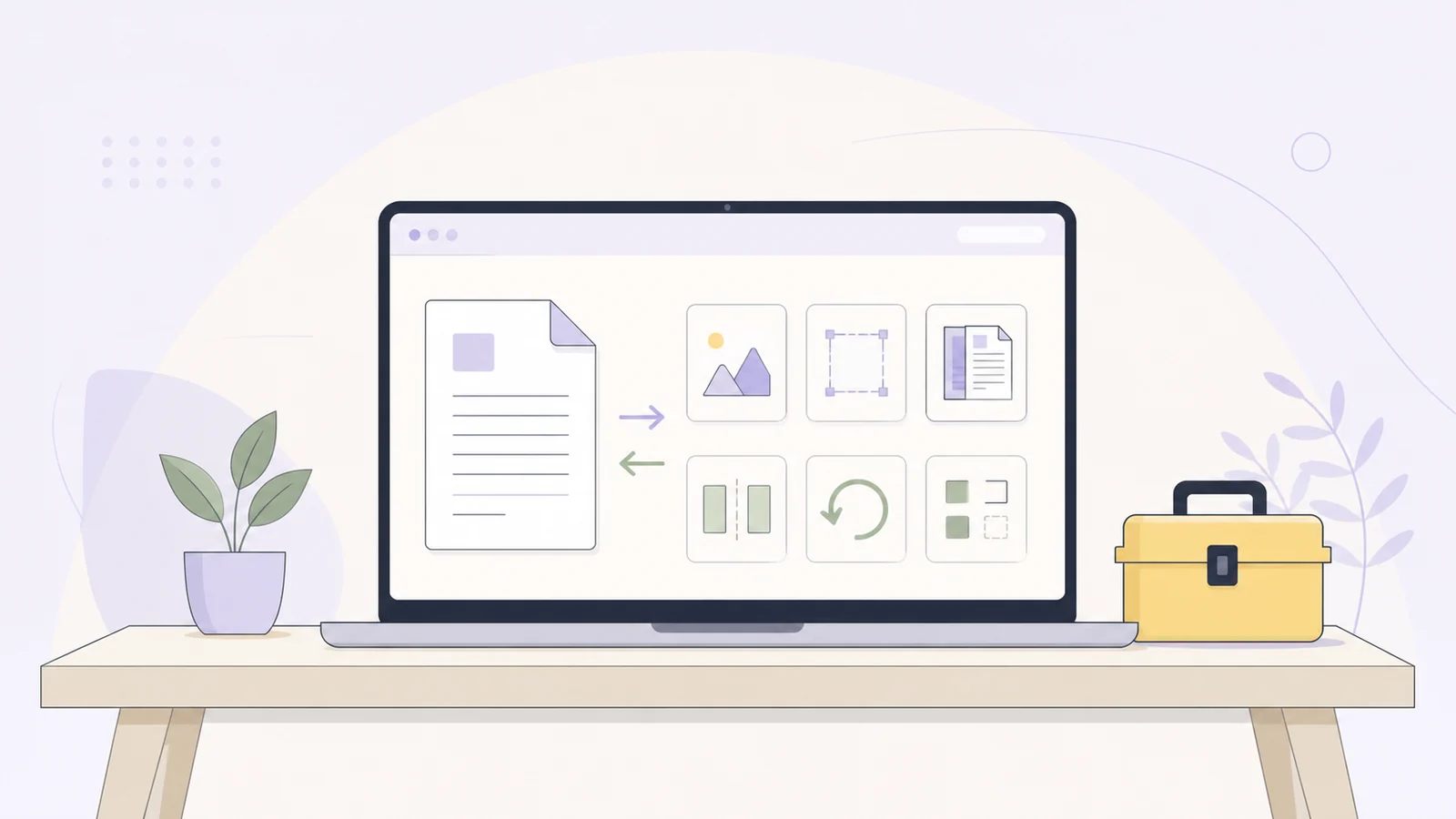
PDF work is rarely just a matter of opening a file and reading it. You may need to combine a report and its appendices, remove selected pages, shrink a scanned application for upload, turn product photos into a printable document, or export specific pages as images for a presentation.
The right PDF tools make those jobs predictable. TheOnlineToolset brings together focused online PDF tools for organizing, compressing, converting, exporting, protecting, and finishing documents. Instead of forcing every task through one generic workflow, each tool gives you controls that match the job: queue order for merging, page ranges for splitting, DPI settings for image export, page-level rotation, custom numbering, watermark placement, and more.
That depth can make TheOnlineToolset a more powerful practical choice than a popular generic PDF site when the task requires precise control rather than a single broad “convert” button. You can work in a common desktop or mobile browser, choose the operation you need, set the relevant options, and download the result without turning a focused PDF job into a heavyweight editing project.
Choose the right PDF tool first
The fastest workflow starts by identifying the result you need. Here is a quick task chooser.
Your task | Use this tool | Useful controls |
|---|---|---|
Combine several complete PDF files | Add 2–20 PDFs, reorder the queue | |
Extract or divide pages | Selected pages, custom ranges, size-based chunks, optional ZIP | |
Change page orientation | Selected pages or ranges, 90/180/270 degrees, preview | |
Reduce attachment size | Best, Normal, and High compression profiles | |
Turn images into a document | JPG, PNG, or WEBP; page size, orientation, margins | |
Convert an editable office document | DOC or DOCX conversion | |
Create a PDF from structured text | Headings, tables, code, links, images, Unicode, Arabic | |
Export pages as images | Selected pages, JPG/PNG/WEBP, 150/200/300 DPI | |
Add running page labels | Format, starting number, page range, font, position, color | |
Add a visible ownership or status mark | Text or image, opacity, rotation, tiling, page range, layer | |
Require a password to open a file | Open-password protection | |
Remove known password protection | Existing password required |
You do not have to learn a large interface before completing a small job. Pick the operation, supply the file, set the relevant options, and inspect the output before sending it onward.
Organize PDFs with control over pages and order
Merge 2–20 PDFs in the correct order
Merge PDF online combines complete PDFs into one file. It supports between 2 and 20 input files and lets you reorder the queue before processing.
That queue matters. A report may arrive as a cover page, body, appendix, and signed form in separate files. A submission may require a resume before a portfolio. An invoice package may need the invoice first, followed by receipts and supporting documents. Uploading files in the wrong order can create a technically valid PDF that is still inconvenient or unusable.
Before merging, use a simple naming convention or arrange the queue visually:
Cover or title page
Main document
Supporting sections
Appendices
Forms or attachments
The merge tool works on whole files, so it is best when each input is already organized internally. If you need to take only a few pages from a larger PDF, split those pages first and then merge the resulting files.
Queue reordering is one of the practical differences between a focused tool collection and a generic PDF workflow. You can make the structure of the final file explicit before processing instead of correcting page order afterward.
Split by selected pages, page range, or approximate file size
Split PDF online is useful when “make smaller files” means something more specific than dividing a document in half. You can select individual pages, define custom page ranges, or create size-based chunks. The output can also be compressed, and multiple results can be downloaded as a ZIP archive.
Selected pages are helpful for extracting a receipt, a signed form, or a particular chapter. Custom ranges work well for dividing a report into sections—for example, pages 1–4 for the summary, pages 5–18 for the body, and pages 19–22 for appendices.
Size-based splitting is useful when a service, portal, or email workflow has a practical file-size limit. Treat the boundaries as approximate rather than as a mathematical guarantee. PDF pages vary widely: a page of text may be tiny, while a scanned page or image-heavy spread may be much larger. After processing, check each output file’s actual size before uploading it.
If the split creates several files, the ZIP option keeps the results together for download. You can then rename the individual PDFs for their next destination.
Having three distinct split modes—selected pages, custom ranges, and size-based chunks—makes the operation more useful for real document preparation. You can choose the rule that matches the job instead of using the same split behavior for every file.
Rotate selected pages instead of the whole document
Rotate PDF is useful for a document with only a few pages in the wrong orientation. It lets you target selected pages or custom ranges and apply a 90-, 180-, or 270-degree rotation. A preview helps you confirm the result before downloading.
This is especially useful for mixed documents containing landscape tables, sideways scans, or pages photographed in a different orientation. If only pages 7 and 12 are sideways, rotate those pages rather than changing every page in the file. For a batch of consistently rotated pages, use a custom range.
Rotation changes page orientation, not the underlying content. It is therefore a good finishing step after scanning or assembling pages, but it is not a substitute for editing text or reconstructing a damaged document.
Compress a PDF for email without losing readability
Compress PDF online helps reduce the size of a PDF before email, upload, or storage. It offers Best, Normal, and High compression profiles so you can choose a practical balance for the document in front of you.
Compression is a quality tradeoff, especially for image-heavy or scanned PDFs. A text-first report may remain easy to read after substantial reduction, while a form with small print, a detailed diagram, or a scanned signature needs more care. The goal is not simply the smallest possible file. It is the smallest file that still works for its purpose.
A sensible process is:
Keep the original PDF unchanged.
Run a compression profile that fits the use case.
Open the result and inspect small text, tables, signatures, photos, and page edges.
Check the new file size.
Try another profile if the result is too large or too soft.
For email, readability usually matters more than squeezing out the last few megabytes. For a portal with a strict limit, you may need to compress and then verify that the result meets the portal’s actual requirement. No compression tool can promise that every PDF will reach an exact target size without affecting quality; the source file’s structure and images determine how much reduction is possible.
Scanned PDFs deserve extra attention. They often contain full-page raster images rather than selectable text, so their size is driven by image resolution and content. After compression, zoom into a signature, a serial number, or a small printed field. If the document is for an application or official submission, compare the compressed copy with the original before sending it.
Convert images into a PDF
Images are often the starting point for receipts, forms, whiteboard notes, product documentation, and photographed pages. TheOnlineToolset supports image-to-PDF workflows for JPG, PNG, and WEBP files, with dedicated routes also available for JPG to PDF, PNG to PDF, and WEBP to PDF.
You can queue multiple images and decide whether to create one combined PDF or separate PDFs. Page options include A4 or Letter sizing, portrait or landscape orientation, and margins. These controls make the result more useful than a simple image container.
For a combined PDF, arrange the image queue in reading order before processing. This is important for:
A series of photographed receipts
A multi-page application
Scanned notes
A product or inventory packet
A sequence of diagrams
A set of pages captured on a phone
Choose A4 or Letter based on where the document will be printed or submitted. Use fit-oriented settings when preserving the full image is more important than filling every edge. Keep margins in mind for forms and printer handling; a page that reaches the physical edge may not print as expected on a typical office printer.
The source format also matters. PNG can be useful for screenshots, diagrams, and images with crisp lines. JPG is common for photographs and scans. WEBP can be convenient when that is the format you already have. The resulting PDF is designed for packaging and sharing those images as pages; it does not automatically turn a photograph into editable text.
Convert Word and Markdown documents to PDF
Word DOC or DOCX to PDF
Word to PDF converts DOC and DOCX files into PDF through isolated server-side LibreOffice processing. The original document remains unchanged, so you can keep editing the source while using the PDF as a stable version for review, delivery, or upload.
Before downloading, check the output for the details that most often shift during document conversion:
Page breaks
Headers and footers
Tables that span pages
Image placement
Fonts and line wrapping
Margins and print orientation
Footnotes and numbered lists
A Word-to-PDF conversion is useful when the recipient needs a consistent page-based document rather than an editable office file. It is also useful for preparing a report, invoice, application, or contract draft for a final visual review. If the document contains unusual fonts or complex layout elements, inspect several pages rather than assuming that the first page represents the whole file.
Markdown to PDF with tables, code, images, and Arabic
Markdown to PDF is designed for structured content. It supports headings, lists, tables, code, links, images, Unicode, and Arabic, making it suitable for technical notes, documentation, release information, project reports, and mixed-language material.
Markdown is valuable when the source should remain easy to edit and version. A document can begin as a plain-text file, then become a polished PDF for distribution without manually rebuilding every heading and table.
Pay particular attention to images. Local or relative image references must follow the tool’s security restrictions, so an image path that works in a local editor may not be accepted in a server-side conversion workflow. If an image does not appear, check the reference, location, and supported path behavior rather than repeatedly changing unrelated Markdown.
For code-heavy documents, inspect line wrapping and page breaks. For Arabic or other Unicode content, verify direction, glyph rendering, and mixed-language headings in the generated PDF. Tables should be checked at both normal viewing size and print size, especially if they contain long cells or multiple columns.
Export selected PDF pages as images
Sometimes a PDF is the source, but the next destination needs an image. PDF to image can export selected pages as JPG, PNG, or WEBP, with 150, 200, or 300 DPI options. Dedicated routes are also available for PDF to JPG, PDF to PNG, and PDF to WEBP.
Selecting pages avoids exporting an entire document when you need only one chart, cover, receipt, or appendix. It can also reduce download time and make the output easier to manage. When exporting multiple pages, the results can be packaged as a ZIP archive.
DPI is the key decision:
150 DPI is a practical starting point for many screen-based uses.
200 DPI can provide additional detail for documents that need more legibility.
300 DPI is useful when higher detail matters, such as print-oriented pages or small text.
The right setting depends on the destination. A web preview and a printed form do not need the same image dimensions. Higher DPI generally produces larger files, so choose it because the output needs the detail, not simply because the number is higher.
Choose JPG when compact photographic output is useful, PNG when crisp text or line art matters, and WEBP when that format fits the receiving workflow. After export, open the image at its intended size. A page can look sharp when zoomed in but be difficult to read when displayed as a small preview.
Selected-page export, three common image formats, and explicit DPI choices give this workflow more practical range than a one-click full-document export. You can create only the assets a presentation, upload form, or web page actually needs.
Add page numbers with a format that fits the document
Add page numbers to PDF is useful after merging files, assembling a report, or preparing a long document for review. It supports formats using {n} and {total}, so you can create labels such as “3” or “Page 3 of 18.” You can set the starting number, apply numbering to a selected page range, and choose fonts, size, position, color, and styles.
Selected-page numbering helps when the cover, title page, or front matter should remain unnumbered. It also helps when numbering a section inside a larger file rather than changing every page.
Before applying numbers, decide what the number represents. If the first visible page is a cover but the first body page should read “1,” use the starting-number setting and selected range to match the document’s convention. If the PDF already has printed page labels, compare the new numbering against them to avoid creating two confusing systems.
Position and contrast matter as much as the number itself. Keep labels away from important content, use a color that remains readable, and check pages with dark photos or shaded tables. Page numbers are most helpful when they support navigation without competing with the document.
Watermark a PDF with control over visibility and coverage
Watermark PDF supports both text and image watermarks. You can choose font and style for text, scale an image, set an anchor, use a single mark or a tiled pattern, adjust opacity, rotate the watermark, select a page range, and decide whether it appears over or under the page content.
That range of controls supports different purposes:
“DRAFT” across working pages
A light ownership mark on a report
A review status on selected pages
A repeated image mark across a document
A subtle source label on an exported packet
Use opacity carefully. A watermark that is too faint may be ineffective, while one that is too strong can obscure the document. For a draft label, a larger rotated mark may be appropriate. For ownership or source information, a smaller anchor-positioned mark can preserve readability.
The page range is particularly useful when only certain sections need marking. You might watermark an appendix, a confidential pricing page, or a set of internal review pages while leaving the cover and table of contents clean.
Choose the over or under layer based on the purpose. A watermark under content is less intrusive, while an overlaid mark is more visible. In either case, inspect pages with light and dark backgrounds before sharing the result.
Protect and unlock PDFs within clear boundaries
Protect PDF adds open-password protection. This is appropriate when anyone opening the file should be required to enter a password. Use a password that is appropriate for the sensitivity of the document and share it through a separate channel when practical.
Open-password protection is a specific capability. It should not be confused with every possible PDF permission setting. If your requirement involves separately controlling printing, copying, or editing permissions, confirm that the receiving system supports those controls before relying on this workflow.
Unlock PDF works when you already know the PDF’s password. It does not recover a forgotten password. That boundary is important: a known password lets you remove protection for a legitimate next step, while password recovery is a different problem and is not provided by the tool.
Keep the protected original when it matters. For example, you might retain the password-protected copy for delivery and create an unlocked working copy only when a downstream process requires it. Always confirm which version you are about to attach or upload.
For confidential material, read the current security information and file retention and deletion policy before using an online workflow. Server-side processing, file handling, and retention policies are relevant parts of a responsible document process, especially for applications, reports, invoices, and personal records.
Practical PDF workflows you can repeat
The individual tools become more useful when combined into a short, deliberate sequence.
Prepare a report for email
Start with Word to PDF if the report is still an editable DOC or DOCX file. Open the PDF and check layout, then use Compress PDF online if the attachment is larger than your email workflow allows. Inspect small text, tables, and images after compression before sending.
If the report has separate appendices, convert each source file first and then use Merge PDF online to build the final package in the correct order.
Create a submission packet from scanned pages
If you have JPG, PNG, or WEBP scans, use Image to PDF to create a combined document. Choose the page size and orientation that match the submission requirements, and use margins that keep content printable.
If a few pages were captured sideways, use Rotate PDF on those pages. If the packet contains pages that should be sent separately, use Split PDF online with selected pages or custom ranges. Finally, use Protect PDF if the recipient requires an opening password.
Extract a chapter or appendix
Use Split PDF online with a custom page range to extract the relevant section. If you need to combine that section with a cover letter or another PDF, run Merge PDF online afterward and reorder the queue.
For a presentation or web page, export only the required pages through PDF to image. Choose PNG for crisp diagrams or JPG for a compact photo-oriented result, then select a DPI appropriate to the destination.
Add finishing details to a long document
Once the pages are in their final order, apply Add page numbers to PDF. Use a selected range if the cover should remain unnumbered. If the document needs review status or ownership information, add a Watermark PDF mark afterward and inspect the result for readability.
Finishing after organization helps prevent rework. If you number pages before merging, the final page count may change. If you watermark before rotating or splitting, you may need to inspect more intermediate files.
Publish technical notes from Markdown
Keep the source in Markdown so headings, lists, tables, code, and links remain easy to edit. Use Markdown to PDF, then review code wrapping, table widths, image references, and Unicode or Arabic content.
If readers need individual figures rather than the complete document, export selected pages with PDF to image. If the PDF is too large for the distribution channel, compress it and compare the result against the original.
This kind of chaining is where precise controls matter most. A generic site may handle one conversion adequately, but a focused collection lets you organize, convert, export, compress, and finish a document in a sequence that matches the actual workflow.
Check the output before you share it
A successful download is not the same as a successful document. Before attaching or uploading the result, open it and check the parts most likely to matter.
Confirm that:
Every expected page is present.
Pages appear in the correct order.
Selected pages were actually selected.
Rotated pages read in the intended direction.
Text, tables, forms, and signatures remain legible.
Images are not unexpectedly cropped.
Page numbers use the correct starting value and range.
Watermarks are visible without hiding content.
The file opens in the browser or application used by the recipient.
The file size meets the destination’s practical limit.
The filename is clear and does not accidentally expose private information.
Keep originals until the final output has been accepted. This is especially important after compression, conversion, splitting, or image export, because the result may be technically valid while still being unsuitable for a particular reader or upload form.
For confidential material, make a deliberate choice about whether an online, server-side workflow is appropriate. Review current policy information, use a suitable password when protection is required, and avoid sharing passwords in the same message as the protected file when a separate channel is available.
What these PDF tools are—and are not
TheOnlineToolset’s PDF tools focus on practical file operations: organizing pages, changing orientation, reducing size, converting common document and image formats, exporting pages, adding numbers or watermarks, and applying or removing known open-password protection.
That focus is useful when you need a clear result without a broad document-editing suite. It also makes the boundaries clear. These tools are not a promise of OCR, general text editing, redaction, electronic signatures, PDF/A conversion, PDF-to-Word or PDF-to-Excel conversion, repair of damaged files, or forgotten-password recovery.
If a PDF contains an error in its text, start with the original editable source when possible. If a scan needs searchable text, use an OCR workflow designed for that purpose. If a document needs legal redaction or an electronic signature, use a workflow that provides those controls and lets you verify the result.
Choosing the right tool for the actual requirement is more reliable than assuming every PDF task belongs in one interface.
Frequently asked questions
What are the best PDF tools for everyday document work?
The right tool depends on the result you need. Use merge for complete files, split for selected pages or ranges, compress for attachment size, image-to-PDF for scans and photos, Word-to-PDF or Markdown-to-PDF for source documents, PDF-to-image for page exports, and page-number or watermark tools for finishing.
Can I merge 2–20 PDFs online in a specific order?
Yes. Merge PDF online accepts 2–20 PDFs and lets you reorder the queue before combining the whole files. Arrange the cover, main content, supporting documents, and appendices before starting.
Can I split a PDF by selected pages or file size?
Yes. Split PDF online supports selected pages, custom page ranges, and size-based chunks. Size boundaries are approximate because PDF pages can vary significantly in complexity and image content.
How do I compress a PDF for email without losing readability?
Choose a compression profile, download the result, and inspect small text, tables, signatures, and images. Compare the file size and readability against the original. A smaller file is not useful if the recipient cannot read the content.
Can I rotate only certain PDF pages?
Yes. Rotate PDF supports selected pages and custom ranges, with 90-, 180-, and 270-degree rotation options. Use the preview to confirm the intended orientation before downloading.
How do I add page numbers to only part of a PDF?
Use Add page numbers to PDF, choose the selected page range, set the starting number, and select a format such as {n} or {n}/{total}. This is useful when a cover or front matter should remain unnumbered.
Can I watermark a PDF with an image and control its opacity?
Yes. Watermark PDF supports text and image watermarks, opacity, scale, anchor position, rotation, single or tiled placement, page ranges, and over-or-under layering.
Can I protect a PDF with a password?
Yes. Protect PDF adds open-password protection. Anyone opening the resulting file must provide the password. It is an open-password workflow rather than a complete permissions-management system.
Can I unlock a PDF if I forgot the password?
No. Unlock PDF requires the known password. It does not recover or bypass a forgotten password.
Do online PDF tools work on Windows, Mac, iPhone, Android, and Chromebook?
They run in common modern browsers on those types of devices, so the same browser-based workflow can often be used across desktop, mobile, and Chromebook environments. Browser versions, device limitations, and file-handling behavior can vary, so confirm that your particular browser can upload and download the files you need.
Are online PDF tools safe for sensitive documents?
Online PDF tools involve uploading and processing files on a server. Before using one for a sensitive document, assess the document’s sensitivity and review the current security information and file retention and deletion policy. Use password protection where appropriate, share passwords separately, and choose an offline or specialized workflow when your requirements call for it.
Can I combine JPG, PNG, and WEBP images into one PDF?
Yes. Image to PDF supports JPG, PNG, and WEBP queues and can create a combined PDF or separate PDFs. You can choose A4 or Letter, orientation, and margins.
Can I export only certain PDF pages to JPG, PNG, or WEBP?
Yes. PDF to image lets you select pages and choose JPG, PNG, or WEBP. Available DPI settings include 150, 200, and 300, with quality controls where applicable and ZIP output for multiple pages.
Does Word to PDF leave the original DOC or DOCX unchanged?
Yes. Word to PDF processes the DOC or DOCX into a PDF while leaving the original document unchanged. Review page breaks, tables, fonts, and images in the output.
Can Markdown to PDF handle tables, code, images, and Arabic?
Yes. Markdown to PDF supports headings, lists, tables, code, links, images, Unicode, and Arabic. Check local or relative image references against the tool’s security restrictions, and inspect mixed-language layout after conversion.
Why is a compressed PDF still larger than expected?
Compression results depend on the source. Image-heavy and scanned PDFs can contain large raster pages, while text-based PDFs may already be relatively compact. Try another profile, then verify the actual file size and readability rather than expecting a fixed reduction.
What should I do if a converted PDF looks different?
Open the output and compare page breaks, fonts, tables, images, margins, and orientation with the source. For Word files, unusual fonts and complex layouts can affect pagination. For Markdown, check tables, code wrapping, image paths, and Unicode rendering.
Make your next PDF task more deliberate
PDF work becomes easier when the operation matches the document’s real need. Merge complete files when order matters, split by pages when only part of a document belongs in the next package, compress with readability in mind, convert images and source documents into stable page-based files, and export only the pages and formats a destination requires.
TheOnlineToolset gives those everyday jobs a focused set of controls in the browser. Start with the tool that matches your task, review the output carefully, and keep the original until the result is ready to share. When you are ready for the next job, browse the complete PDF tool collection.