
Small PDF edits, without rebuilding the whole document
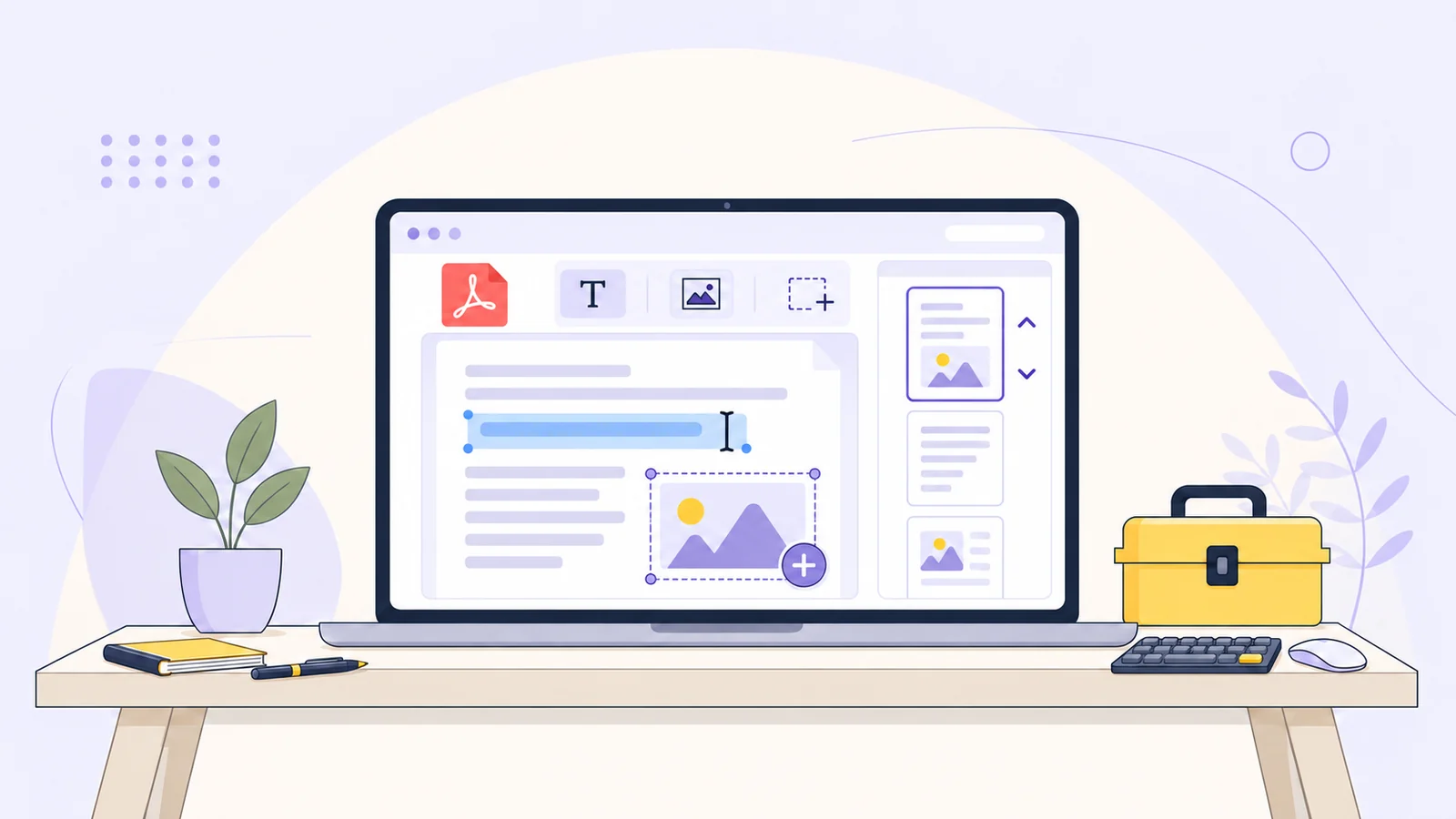
Sometimes a PDF needs just one fix: a line of text corrected, a note added, or an unnecessary page removed. The new Edit PDF tool handles those kinds of changes. You can replace supported text, add text or images, mark up pages, and reorder or remove pages. When you export, you get a separate updated PDF.
Edit existing text
You can replace supported horizontal digital text in a PDF. This won’t work on words that appear only in a scanned image. When the PDF’s font and characters are supported, the editor keeps the text’s font, size, color, and alignment. You can also change its size or color and apply bold, italic, or underline formatting.
The editor makes changes to the page; it doesn’t reflow the document like a word processor. If text is rotated, overlaps other content, uses unsupported characters, or the replacement won’t fit, the edit may fail.
Add text, images, and markups
Add text directly to a page, or insert a PNG or JPEG image, such as a logo or illustration. Images and signature images share a combined limit of 20 MB, with a maximum of 10 MB per file.
For markups, you can highlight content, draw freehand, and add rectangles, ellipses, lines, arrows, triangles, and diamonds. These sit visibly over the PDF; they don’t erase what’s underneath.
You can also draw a signature or add one as a PNG or JPEG. It appears as a visual mark, not a certificate-based digital signature, and counts toward the same image limits.
Reorder or remove pages
Drag pages into a different order or remove pages you don’t need. Undo and redo are available while you work. The editor doesn’t insert new pages or rotate them.
PDF limits and formats
Detail | Limit or format |
|---|---|
Input and output | |
File size | Up to 100 MB |
Page count | Up to 200 pages |
Editing operations | Up to 1,000 per editing session |
Images and visual signatures | PNG or JPEG; up to 10 MB per file and 20 MB combined |
Price and request limit | Free; up to 6 requests per minute |
How to edit a PDF online
Open the Edit PDF tool and upload your PDF.
Choose what you want to change: text, images, a signature, markups, or page order.
Check the result in the preview. Make adjustments or undo changes if needed.
Export and download the updated PDF.
The export starts from your original and creates a separate file. Your source remains available in the editor while you work.
When you may need another tool
Scanned PDFs: This editor doesn’t include OCR. You can add markups or images to a scanned page, but you can’t select and replace the words in the scan. Use a separate OCR tool to recognize the text first.
Password-protected PDFs: Unlock a document you’re authorized to edit before opening it. Unlock PDF can help with that step.
Large layout changes: If you need to rewrite several sections or reflow the document, convert the PDF to Word and make those changes there.
Redacting information: A white shape or annotation can cover text without removing it from the file. For sensitive information, use a redaction tool designed to remove the underlying content.
Certificate-signed PDFs: Editing may invalidate an existing certificate signature. If the document needs a valid signature, plan to sign it again after making changes.
Common questions
Can I edit text in any PDF?
No. The text needs to be supported horizontal digital text. Scanned text, unsupported fonts or characters, rotated or overlapping text, and replacements that don’t fit may not be editable.
Can I edit a scanned PDF?
You can add supported markups or images, but you can’t replace words that exist only in the scan. Run OCR with a separate tool first if you need to edit recognized text.
Does covering text with a white box erase it?
No. It may still be present underneath the shape. Use a redaction tool designed to remove the content.
Will the edit preserve a digital certificate signature?
It may not. Rewriting a certificate-signed PDF can invalidate its signature, so check the document and sign it again if needed.
About your files
Editing requires uploading the PDF and its edit operations for server-side processing. Use the tool only with documents you’re authorized to process online.