
A one-line fix shouldn’t send you back to the beginning
You spot the wrong date in a report. The logo needs to move. One page belongs near the front instead of the end. It’s the sort of change that should take a minute, yet PDFs can make it feel like you need to rebuild the whole document.
The updated Edit PDF tool gives those everyday fixes a more direct route: open the PDF, work on the page, review the result, and export a separate updated file. The biggest improvement is how supported existing text is edited. Click it and type where it appears, instead of covering it with a box and adding a replacement on top.
Try the updated Edit PDF tool and make your next small document change in one workspace.
What’s changed in the editor
The update makes the tool feel more like editing a document and less like assembling a list of PDF operations.
Edit supported text right on the page
Click supported digital text and type your correction in place. When the PDF’s text and font are supported, the editor can retain the original font, size, color, and alignment. You can also change text size or color and apply bold, italic, or underline formatting.
That makes a quick correction feel refreshingly simple. Fix a heading, update a price, or correct a name without opening the original design file first.
PDF text isn’t always built the same way, though. Unsupported fonts or characters, rotated or overlapping text, and replacement text that will not fit can’t always be edited. The editor flags unsupported changes rather than silently substituting text. It also doesn’t reflow an entire document like a word processor.
Find common tools without hunting around
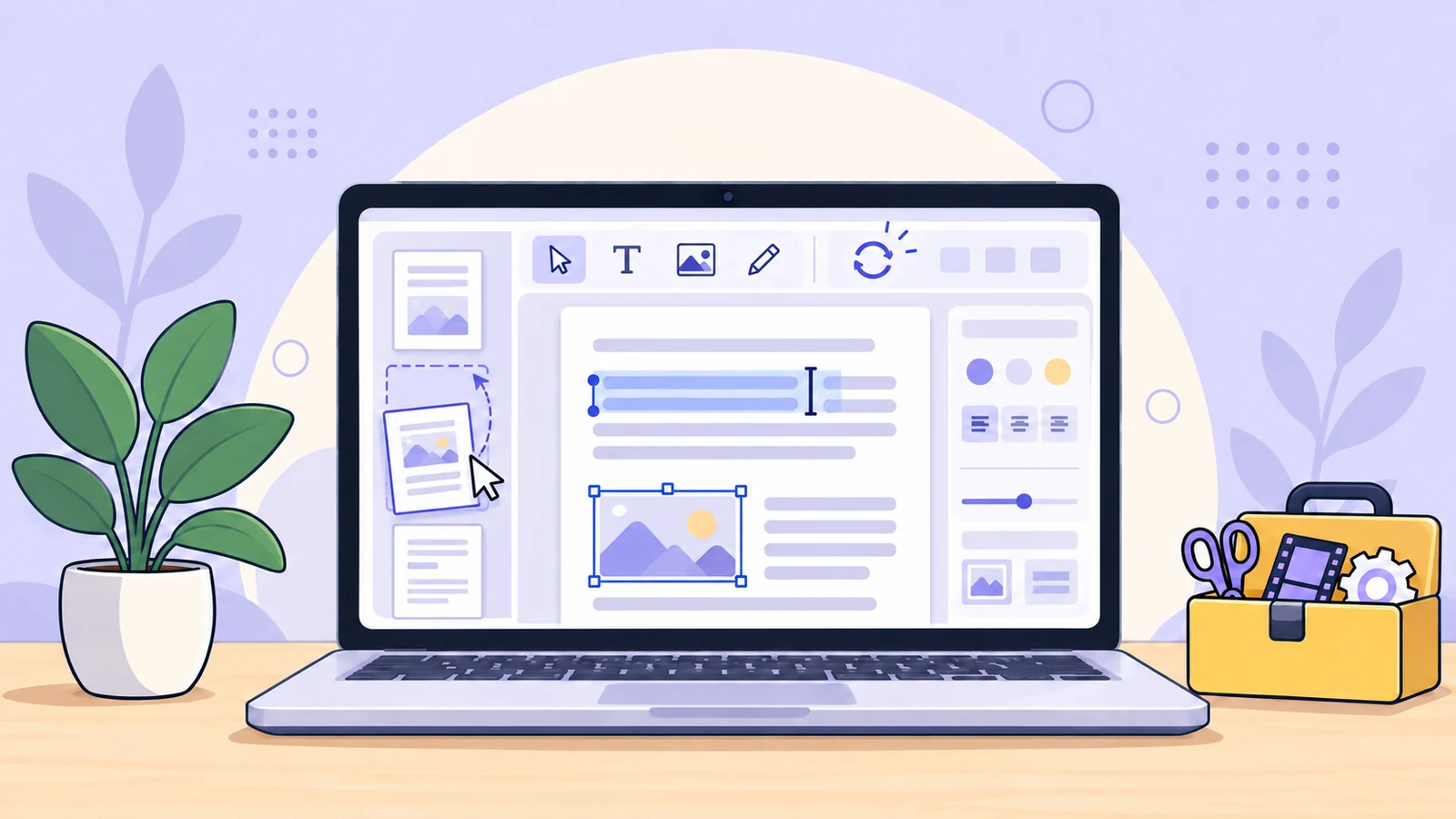
The editing tools sit together above the page: select, edit text, add text, highlight, draw, add shapes, insert an image, or add a visual signature. Select an object to bring up its available settings.
The shapes menu includes rectangles, ellipses, lines, arrows, triangles, and diamonds. Add a mark where it belongs, adjust it, and keep working on the page in front of you.
Keep your place while you review
The page panel helps you move through a longer PDF, and you can drag pages into a new order or remove ones you don’t need. Zoom and Fit page make it easier to inspect a small correction or take in the full layout.
Undo and redo are there when an edit needs another pass. Your working document stays available while an export is being prepared, and the finished result downloads as a separate PDF.
More than a text editor
Some fixes aren’t about changing a word. Add new text to label a page, insert a PNG or JPEG image such as a logo, highlight an important section, or draw a quick note. You can also add a visual signature by drawing it or inserting an image.
For page markup, use shapes and highlights to make information easier to find. They sit visibly over the page; they don’t erase the content underneath. A white box is not secure redaction.
If a page is facing the wrong way, use the separate Rotate PDF tool. The Edit PDF workspace handles reordering and removing pages, but it does not add or rotate pages.
A straightforward way to make a change
Open Edit PDF and select a PDF from your device.
Choose a tool from the toolbar. For an existing text correction, click supported text and type; for a note or graphic, choose Add text, Image, Highlight, Draw, Shapes, or Signature.
Check the page preview. Use the page panel to navigate or reorder pages, and use undo or redo if you want to revise an edit.
Select Export PDF, then download the updated document.
The export starts from the original PDF and creates a separate edited file. Your source remains available in the workspace while you work.
Edit PDF tool at a glance
Detail | Limit or format |
|---|---|
Input and output | |
PDF file size | Up to 120 MB |
Page count | Up to 200 pages |
Editing operations | Up to 1,000 per editing session |
Inserted images and image signatures | PNG or JPEG; up to 10 MB per file and 20 MB combined |
Price and request limit | Free; up to 6 requests per minute |
A few things to know before you edit
Scanned pages: The editor does not include OCR. Text that exists only inside a scanned image can’t be selected and replaced. You can still add text, images, or markups to the page.
Font and layout support: Direct text editing works with supported horizontal digital text. Complicated layouts, unsupported characters, or text that does not fit may need to be edited in the original source document instead. Review the exported PDF, especially when changing a tightly spaced paragraph.
Signatures: The signature tool adds a visual signature. It does not apply a certificate-based digital signature. Rewriting a PDF with an existing certificate signature may invalidate that signature.
Redaction: Highlights, shapes, and white overlays do not securely remove content. Use a tool designed for redaction when text must be permanently removed.
File processing: Editing requires uploading the PDF and its edit operations for server-side processing. Use the tool only for files you’re authorized to process online.
Frequently asked questions
Can I edit existing text in a PDF?
You can edit supported horizontal digital text by clicking it and typing. Font and formatting support depends on the PDF. Scanned text, unsupported fonts or characters, and some crowded or rotated text cannot be replaced in the editor.
Can I edit a scanned PDF?
The tool has no OCR, so it can’t turn text inside a scanned image into selectable text. You can still add text, an image, or a visual markup to the page.
Can I add a logo or signature?
Yes. Add a PNG or JPEG image, including a logo or signature image, within the image size limits. You can also draw a visual signature in the editor. Neither method creates a certificate-based digital signature.
Can I reorder or delete pages?
Yes. Use the page panel to drag pages into a new order or remove pages. The editor does not add or rotate pages.
Does adding a white shape redact text?
No. Shapes cover content visually but don’t securely erase what is underneath. Use a dedicated redaction tool to remove sensitive content.
Does the export overwrite my original PDF?
No. Export creates a separate updated PDF. The original remains available in the workspace while you edit.
Give the small edits a better workflow
A typo, a new logo, a useful highlight, or a page in the wrong place shouldn’t turn into a document rebuild. The updated Edit PDF tool brings those jobs together in one workspace, with direct editing for supported text and a clearer way to review your changes.
Open Edit PDF to make a change, check the page, and download your updated PDF.